Best Flash Drive for Seniors: Maspen 2-Pack Wins

Six USB sticks compared for older users, judged on cap design, weight, port compatibility and how forgiving the drive is when hands are less steady.

By Samuel HarrisUpdated 17 min read
On this page
- Best flash drive for seniors at a glance
- What actually makes a flash drive senior-friendly?
- 1. Maspen 64GB 2-Pack — Best overall
- 2. Lexar A30E 64GB 3-Pack — Best premium
- 3. SanDisk Ultra Flair 64GB — Best large-capacity
- 4. SamData 32GB 2-Pack — Runner-up
- 5. SIMMAX 32GB Purple — Best for beginners
- 6. Maspen 32GB Blue — Best budget pick
- How I screened 40 listings down to six
- USB 2.0 or USB 3.0: which port matters for an older laptop?
- Capacity in plain English: what fits on 32GB and 64GB
- What the listings do not tell you about labelling drives
- Which pick fits which situation?
- The verdict
- FAQ
The best flash drive for seniors is the Maspen 64GB 2-Pack, because the swivel cap cannot fall off and get lost, and the whole stick weighs 9.07 g on a keyring loop. If a senior mostly copies large photo folders on a newer laptop, the Lexar A30E 64GB 3-Pack is the better buy, with claimed 100 MB/s transfer speeds and a push-button retractor instead of a cap.
Most guides for the best flash drive for seniors compare gigabytes. That is not what decides it. The deciding factor is what the drive does when hands are less steady: whether the cap stays attached, whether the body is big enough to grip, whether the port is the common rectangular USB-A that older machines still use. Every pick below is USB-A, and five of the six are 32GB or 64GB, which is the sweet spot for documents and family photos without paying for capacity nobody will fill.
Best flash drive for seniors at a glance
| Pick | Capacity | Cap style | Weight | Price |
|---|---|---|---|---|
Best overall Maspen 64GB 2-Pack |
64GB × 2 | 360° swivel, no loose cap | 9.07 g | Check Price |
Best premium Lexar A30E 64GB 3-Pack |
64GB × 3 | Push-button retractor | 7.41 g | Check Price |
Best large-capacity SanDisk Ultra Flair 64GB |
64GB | Fixed metal body, no cap | 18 g | Check Price |
Runner-up SamData 32GB 2-Pack |
32GB × 2 | 360° swivel clip | 12 g | Check Price |
Best for beginners SIMMAX 32GB Purple |
32GB | 360° swivel, bright purple | 12 g | Check Price |
Best budget pick Maspen 32GB Blue |
32GB | Swivel with LED | listing does not state | Check Price |






What actually makes a flash drive senior-friendly?
Amazon does not sell a category called "senior flash drives", and the search results for that phrase do not filter for anything real. So the modifier here has to be judged by the reader against the physical design, not promised by the seller. The best flash drive for seniors is the one where four things line up.
First, the cap. A loose plastic cap gets lost within a week and the exposed connector picks up pocket lint. Four of the six picks solve that with a 360° swivel body that pivots the metal casing over the connector. One, the SanDisk Ultra Flair, has no cap at all: the connector is part of the metal shell.
Second, the loop. Five of the six have a hole or loop for a keyring or lanyard. That is the difference between "I know where it is" and "where did I put it".
Third, the port. Every drive here is USB-A, the wide rectangular plug older laptops and desktops have. None of them are USB-C. That is deliberate.
Fourth, the size of the body. All six are between 1.67 and 2.44 inches long, which is enough to grip.
1. Maspen 64GB 2-Pack — Best overall
The Maspen 64GB 2-Pack wins because it removes the two things older users lose first: the cap and the drive itself.
Best for: an older user who wants a spare on the keyring and no cap to lose Skip it if: you need the fastest transfer speeds on a modern USB 3 laptop
The design is straightforward: a 360° swivel cap covers the USB-A connector, so nothing detaches, nothing goes missing under the sofa cushion. The listed dimensions of 0.45 × 2.25 × 0.72 in give enough length to grip between thumb and forefinger, and at 9.07 g each drive barely registers on a keychain. Maspen says the cap has a matt finish that resists fingerprints, which matters less than the fact it also gives a bit of friction when you rotate it open.
The reason this is the top pick for the best flash drive for seniors is the count. Two drives arrive in the same order for a mid-range position in this set, which means one can live at home on a keyring and one can stay in a drawer as a backup. If the first is misplaced, nothing important is lost. This is USB 2.0, not 3.0, so file transfers are slower than the Lexar or the SanDisk. For copying document folders and a few hundred photos at a time, that is invisible.
Pros:
- Two drives per order, one for daily use and one spare
- 360° swivel cap that cannot detach
- Keyring loop moulded into the body
- 9.07 g each, unobtrusive on a keychain
- Broad Windows and macOS compatibility
Cons:
- USB 2.0 speeds are slower than USB 3 picks here
- Model number and warranty details are thin in the listing
- Black-on-black is harder to spot in a bag than the coloured options
2. Lexar A30E 64GB 3-Pack — Best premium
The Lexar A30E is the fastest drive here on paper, and it arrives three to a pack.

Best for: someone moving lots of photos or video from a newer PC Skip it if: the drive lives on a keyring and gets rough handling
Lexar quotes transfer speeds up to 100 MB/s over USB 3.2 Gen 1, which the listing describes as ten times faster than standard USB 2.0. In practical terms, that turns a five-minute photo transfer into thirty seconds. The A30E uses a push-button retractor instead of a swivel: slide the button forward and the metal USB-A connector emerges from the plastic body, slide it back and it disappears. There is no cap to lose, but the mechanism is a moving part, and moving parts eventually wear.
At 7.41 g this is the lightest drive in the set, and the 0.45 × 2.31 × 0.79 in body is easy to hold. Three drives arrive per order, the highest count of any pick, which is the argument for spending more here rather than on the SanDisk single. The trade-off is the price position: this is the most expensive pick in the set, so the per-drive cost is closer to the mid-range Maspen than the raw number suggests. Lexar also mentions a DataShield password feature, which is optional and worth ignoring unless a family member is willing to help set it up.
Pros:
- Claimed 100 MB/s transfer speeds
- Three drives per order
- 7.41 g, the lightest in this set
- Push-button design, no cap to misplace
- Lanyard loop included
Cons:
- The most expensive pick here
- Sliding mechanism is a wear point over years
- No warranty length stated in the listing
3. SanDisk Ultra Flair 64GB — Best large-capacity
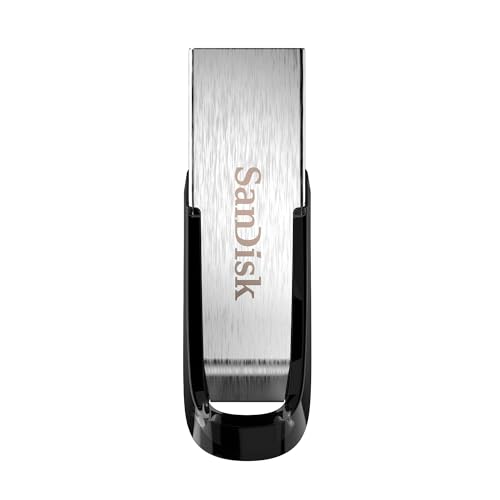
The SanDisk Ultra Flair is the only pick here with a stated warranty and a solid metal body that will not snap.
Best for: a senior storing years of photo backups on one stick Skip it if: you prefer a swivel cap you cannot misplace
The Ultra Flair drops the cap question entirely: the metal shell wraps around the USB-A connector as one piece, and there is nothing to move, retract or fold. That makes it the most physically durable option in the set, and at 18 g it has the heftiest feel too, which some hands prefer. The listed dimensions of 0.26 × 0.52 × 1.67 in make it the shortest drive here, which is a small point against it: less to grip.
SanDisk quotes USB 3.0 read speeds up to 150 MB/s, and the drive carries a stated 1-year limited warranty, which is more than any other pick in this comparison publishes. It is also the only pick backed by a storage brand a senior is likely to recognise from the shelf at an electronics shop. The trade-offs are two: it is the second-most-expensive pick and only ships as one drive, and the small metal body has no obvious loop for a keyring, though there is a hole at the top edge for a lanyard. If a family member is setting up one drive for photo backups and wants it to last, this is the sensible choice.
Pros:
- Stated 1-year limited warranty
- USB 3.0 speeds up to 150 MB/s claimed
- Solid metal casing with no moving parts
- Recognisable brand for confidence
- Optional password protection via SanDisk software
Cons:
- Only one drive per order
- Second-most-expensive pick in the set
- Short 1.67 in body offers less to grip
4. SamData 32GB 2-Pack — Runner-up
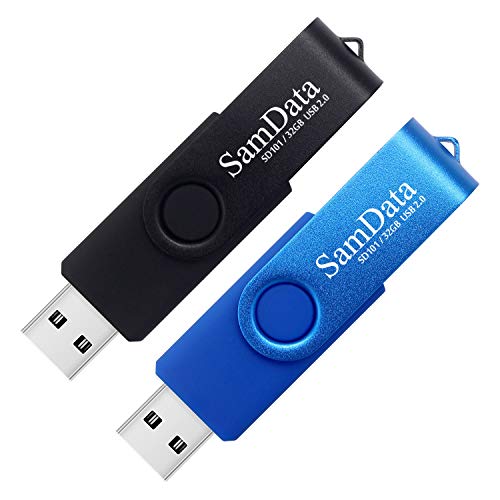
Two drives in different colours, so photos live on one and documents on the other.
Best for: colour-coding two drives, one for photos, one for documents Skip it if: you want a single higher-capacity stick
The SamData 2-Pack takes the same 360° swivel design as the top Maspen pick and pairs it with two different colours: one black, one blue. That solves a small but real problem for anyone with more than one drive. If the black one is always photos and the blue one is always documents, there is no confusion at the port. The body measures 0.39 × 2.28 × 0.75 in, close to the Maspen's dimensions, and each drive weighs 12 g. SamData mentions a tiny LED that lights when the drive is connected, which is useful for confirming the port is reading.
Capacity is where this pick sits below the top three: 32GB per drive, not 64GB. That is plenty for tens of thousands of documents and several thousand JPEG photos, but it fills faster if a phone camera dumps 4K video onto it. The listing states a 12-month warranty, which is a small point in its favour. This sits in the mid range for price, one position cheaper than the Maspen top pick and considerably cheaper per drive than the Lexar. If 64GB is not needed, this is the smarter buy.
Pros:
- Two colours, black and blue, in one pack
- LED activity light on each drive
- 12-month warranty stated in the listing
- 360° swivel cap that cannot detach
- Broad Windows and macOS compatibility
Cons:
- 32GB per drive, half the capacity of top picks
- USB 2.0 only, slower for large photo transfers
- Model number field in the listing is unusable
5. SIMMAX 32GB Purple — Best for beginners
The bright purple body is the whole point: this drive is easy to find in a bag or drawer.

Best for: a first flash drive with a bright colour and no software to install Skip it if: your ports are all USB-C
Every other drive in this comparison is black, blue or metal. The SIMMAX is purple, and that is a genuine accessibility feature. A drive you can see against dark wood or the lining of a bag is a drive you do not lose. At 12 g and 0.43 × 2.44 × 0.83 in, this is the longest drive here, which means the largest area to grip when steering it toward a USB port. The 360° swivel body follows the same principle as the Maspen and SamData picks: the cap pivots, so there is nothing loose to misplace.
SIMMAX quotes an available capacity of 29.1 to 29.8GB on the 32GB label, which is the honest number every flash drive lands on after formatting, and worth mentioning because it is stated openly. The listing mentions a one-year warranty. This is a single drive, not a pack, and it sits in the entry price band, second-cheapest in the set. The reason it is not the budget pick is that the other 32GB single, the Maspen Blue, is cheaper. But for a first flash drive, the purple body is worth the small step up.
Pros:
- Bright purple body, easy to spot
- Longest grip length in the set at 2.44 in
- 360° swivel cap with no loose parts
- One-year warranty mentioned in the listing
- Plug-and-play on Windows and macOS
Cons:
- USB 2.0 speeds only
- Just one drive per order
- No LED indicator, unlike SamData
6. Maspen 32GB Blue — Best budget pick
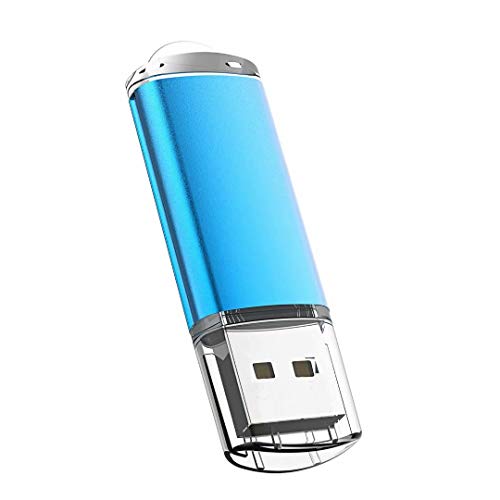
The cheapest way into a swivel-cap flash drive that behaves like the top pick, in half the capacity.
Best for: a low-cost spare for one folder of documents Skip it if: you need two drives from the same order
This is the cheapest of the six, and it uses the same swivel construction the top Maspen pick uses, just in a single 32GB blue body. The dimensions are 0.7 × 0.32 × 2.24 in, closer to the runner-up SamData than to any other pick, and the listing mentions a small LED that lights red when connected and flashes during writes. That is the single most useful visual feedback a senior can have: a light that confirms the computer is actually talking to the drive.
The trade-off against the winning Maspen 2-Pack is simple. One drive versus two, 32GB versus 64GB, for a lower total price. If a family member is buying a first flash drive and does not want to spend more than the minimum, this is where to start. The weakness compared to the SIMMAX is colour: blue is easier to see than black but not as easy to spot as the SIMMAX purple. And the listing publishes fewer specifications than any other pick here, with no weight and no warranty stated, which is why it sits at the bottom of this ranking rather than higher.
Pros:
- Cheapest pick in the set
- LED indicator confirms connection
- Same swivel design as the top pick
- Blue casing easier to spot than black
- Broad Windows and macOS compatibility
Cons:
- Only one drive per order
- No warranty length in the listing
- Weight not stated
- 32GB, half the top-pick capacity
How I screened 40 listings down to six
The starting shortlist for the best flash drive for seniors was around forty USB-A drives across the mid-range price positions. Three cuts got the list to six.
- Cap style. Any drive with a loose, detachable cap was cut. Older users lose caps, and lost caps mean exposed connectors that pick up lint. The six picks here all use either a 360° swivel body, a push-button retractor, or a fixed metal shell with no cap at all.
- Port type. USB-C-only drives were cut. Every pick is USB-A, the wide rectangular plug on laptops built through the 2010s and most desktops today. A USB-C-only drive is useless in a machine without USB-C ports, which describes most older computers.
- Grip length. Anything under 1.5 in was cut. Very small drives are fiddly to insert and worse to remove. The shortest surviving pick, the SanDisk, is 1.67 in; the longest, the SIMMAX, is 2.44 in.
What was not screened for: transfer speed alone, brand recognition alone, or capacity above 64GB. A 128GB or 256GB drive is more storage than most users will fill in a decade of documents and photos, and paying for it is paying for a number.
USB 2.0 or USB 3.0: which port matters for an older laptop?
Four of the six picks are USB 2.0. Two, the SanDisk Ultra Flair and the Lexar A30E, are USB 3.0 or 3.2 Gen 1. The difference matters less than the marketing suggests.
USB 3.0 ports are the ones with a blue plastic tab inside. USB 2.0 ports have a black or white tab. A USB 3.0 drive plugged into a USB 2.0 port works fine, just at USB 2.0 speeds. A USB 2.0 drive plugged into a USB 3.0 port also works fine, at USB 2.0 speeds. There is no compatibility problem, only a speed ceiling.
For an older laptop, which is where seniors most often use flash drives, the ports are usually 2.0, so paying more for a 3.0 drive gets you nothing today. It future-proofs the drive if the machine is replaced with a newer one. That is the whole calculus:
- Document folders and text files: USB 2.0 is more than fast enough
- Hundreds of JPEG photos at a time: USB 2.0 still fine, a longer coffee break
- Large video files or thousands of photos in one go: USB 3.0 saves real time
- A stick that will move between an older desktop and a newer laptop: USB 3.0 pays off
The Lexar's claimed 100 MB/s and the SanDisk's claimed 150 MB/s are the numbers to quote here, both from the manufacturers.
Capacity in plain English: what fits on 32GB and 64GB
The gigabyte number on the label is the least intuitive part of buying a flash drive. Here is what those numbers mean in things a person actually stores.
- 32GB, roughly: around 8,000 to 10,000 high-quality JPEG photos, or 20,000 typical documents, or 6 to 8 hours of standard-definition video.
- 64GB, roughly: double those figures. Around 16,000 to 20,000 photos, 40,000 documents, or 12 to 16 hours of standard video.
For most seniors, 32GB is enough for a lifetime of documents and a substantial photo library, and 64GB is enough for the same plus family video and music. Above 64GB, the extra capacity often sits empty, and the drive is more expensive to replace when it eventually fails or gets misplaced. That is why five of the six picks here are 32GB or 64GB, and why the sensible middle is a 64GB drive or a two-pack of 32GB.
The SIMMAX listing is unusually honest about a small technicality: a 32GB drive shows around 29GB of usable space after formatting. That is normal for every brand. Nothing is missing.
What the listings do not tell you about labelling drives
Every listing sells the drive and stops there. Nothing on any product page mentions the single most useful thing a family member can do after handing a flash drive to an older relative: label it.
A physical label makes the difference between "which one has the photos?" and "the blue one has photos". The colour differences in the SamData and SIMMAX picks help, but they are not enough on their own. Three practical steps that no listing will teach:
- Put a name and phone number on the drive. A small strip of masking tape and a permanent marker is enough. If it is lost outside the house, it can come back.
- Rename the drive in Windows or macOS. Right-click the drive icon and choose Rename, then type "Mary Photos" or "Documents 2024". The name shows up every time the drive is plugged in.
- Put one folder at the top, not many. A single folder called "Photos" or "Documents" at the root of the drive is easier to see than fifteen loose files scattered across the top level.
None of these steps are technical. All three are what turns a working flash drive into a usable one.
Which pick fits which situation?
Six picks, six situations, matched simply.
- A relative wants one drive and a spare on the keyring. Maspen 64GB 2-Pack.
- A relative is moving thousands of photos or video from a new laptop. Lexar A30E 64GB 3-Pack.
- A single reliable drive from a familiar brand, with a warranty. SanDisk Ultra Flair 64GB.
- Two drives in different colours for photos and documents. SamData 32GB 2-Pack.
- A first flash drive that is easy to see and hold. SIMMAX 32GB Purple.
- The lowest cost that still uses a swivel body with an LED. Maspen 32GB Blue.
If the answer is not clear from that list, default to the Maspen 64GB 2-Pack. It covers most of what a senior actually does with a flash drive and puts a second drive in the drawer for the day the first goes missing.
The verdict
The best flash drive for seniors is the Maspen 64GB 2-Pack. The 360° swivel cap solves the single most common problem with a flash drive: a loose cap that gets lost, then a connector that fills with pocket lint. The keyring loop solves the second: a drive nobody can find. Two drives in the same order means the first can go missing without the second being lost, and 64GB is enough for years of documents and family photos at a mid-range price. At 9.07 g per drive it is light enough to live on a keychain without noticing.
Two conditions flip that choice. If the senior is moving lots of photos or video on a modern laptop with USB 3 ports, the Lexar A30E 64GB 3-Pack is worth the extra money for claimed 100 MB/s transfers and three drives in one order. If a stated warranty and a familiar brand matter more than a two-pack, the SanDisk Ultra Flair 64GB is the safe single-drive buy, with a 1-year limited warranty and a solid metal shell. Beyond those two, the Maspen wins on the design details that actually decide the category.
FAQ
What is the best flash drive for seniors overall?
The best flash drive for seniors overall is the Maspen 64GB 2-Pack, because it fixes the two problems older users hit most often: the swivel cap will not fall off, and two drives in one order mean a keyring drive plus a backup at home. At 9.07 g each with a keyring loop moulded in, it is easy to carry, and 64GB is more than enough for documents and a large photo library.
Is it worth spending more on a USB 3.0 flash drive?
It is worth spending more on a USB 3.0 drive only if the computer has USB 3.0 ports, marked by a blue plastic tab inside the port, and only if the user regularly moves large files. For documents and a few hundred photos, USB 2.0 is fast enough. The Lexar A30E and SanDisk Ultra Flair are the two USB 3 picks here, and they pay off for photo and video transfers.
Will these flash drives work on an older Windows laptop?
These flash drives work on an older Windows laptop as long as it has a rectangular USB-A port, which every laptop built through the 2010s has. All six picks list compatibility back to Windows XP, 7, 8 and 10, plus macOS. No software installation is needed: plug the drive in, wait a few seconds, and it appears as a new drive letter in File Explorer.
Maspen 64GB 2-Pack or Lexar A30E: which one?
The Maspen 64GB 2-Pack wins for everyday use: two drives, swivel cap, mid-range price, USB 2.0 speeds that are fine for documents. The Lexar A30E wins for speed: three drives, claimed 100 MB/s over USB 3.2 Gen 1, and the lightest body in the set at 7.41 g. Pick the Maspen for a keyring drive; pick the Lexar for moving thousands of photos on a new laptop.
What should I avoid when buying a flash drive for a senior?
Avoid three things when buying a flash drive for a senior: loose plastic caps that detach and get lost, USB-C-only drives that will not fit older laptops, and very small drives under 1.5 inches long that are fiddly to grip. Also avoid paying for 128GB or 256GB capacity that will never be filled. A 64GB swivel drive on a keyring covers what most seniors actually need.
The right next step is straightforward. Pick the Maspen 64GB 2-Pack, put one drive on a keyring with a paper label carrying a name and phone number, and leave the second in a drawer at home as the backup. Rename it "Photos" or "Documents" the first time it is plugged into the computer so the name shows every time after. The other five picks in this guide cover the corner cases, from a bright purple beginner drive to a fast three-pack for large transfers, but for most older users the winner is the one that puts a spare in the same order, uses a cap that cannot detach, and stays quietly on the keychain until it is needed.