Best Touchscreen Chromebook for Content Creators
Five touchscreen Chromebooks compared on RAM, storage, panel brightness and hinge design, with the Acer Plus 514 leading and a convertible runner-up for sketching.

By Samuel HarrisUpdated 14 min read
On this page
- Touchscreen Chromebook at a glance
- How I narrowed a wide field to five
- The specification that actually decides this
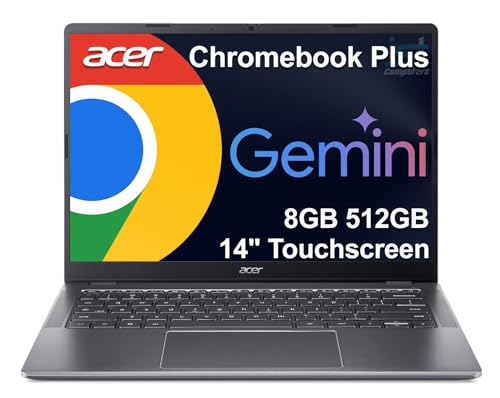
- 1. Acer Chromebook Plus 514 — Best overall
- 2. Lenovo Chromebook 14" WUXGA — Best for heavy use
- 3. HP Laptop X360 14a Chromebook — Most versatile
- 4. acer 2023 Chromebook 15.6" — Best for families
- 5. Lenovo 11.6" 300e Chromebook — Best budget pick
- Does 'content creators' really fit a Chromebook?
- RAM, storage and what each price tier buys
- Which pick suits which creative workflow?
- The verdict
- FAQ
The best touchscreen Chromebook for content creators is the Acer Chromebook Plus 514, thanks to its 8-core Intel Core i3-N355, 8GB of RAM and a 512GB SSD paired with a 14" WUXGA touch panel. If you want a convertible that folds into tablet mode for sketching, the HP X360 14a is the better buy, trading resolution and horsepower for a 360-degree hinge and a lighter creative workflow.
Touchscreen Chromebook at a glance
| Pick | RAM / Storage | Display | Price |
|---|---|---|---|
Best overall Acer Chromebook Plus 514 |
8GB / 512GB SSD | 14" WUXGA, 300-nit | Check Price |
Best for heavy use Lenovo Chromebook 14" WUXGA |
8GB / 64GB eMMC | 14" WUXGA, 400-nit claim | Check Price |
Most versatile HP X360 14a Chromebook |
4GB / 64GB eMMC | 14" HD, 360° hinge | Check Price |
Best for families Acer 2023 15.6" Chromebook |
4GB / 64GB eMMC | 15.6" FHD 1080p IPS | Check Price |
Best budget pick Lenovo 300e Chromebook 2-in-1 |
4GB / 32GB eMMC | 11.6" HD, 2-in-1 | Check Price |




How I narrowed a wide field to five
I started with the listings by criteria and their weights, then worked back to the picks. The weights I gave, in order: RAM and storage first, because creative apps in a browser eat memory and cached project files fill small drives; then panel size, resolution and brightness, because a dim 1366×768 screen makes colour work guesswork; then hinge design, because a touch panel that cannot fold into tablet mode is a partial answer for illustrators; then weight and ports, because creators carry gear.
Why those weights? Chrome OS handles the operating system's memory footprint reasonably well, but the moment you open a browser-based editor, a reference tab, a music player and a chat app, 4GB is the ceiling and 8GB is comfort. That single split cut the field in half. The other three criteria then decide which 4GB pick and which 8GB pick suits which reader.
Here is what survived and what it earned its slot for:
- Acer Chromebook Plus 514 for the only 8GB / 512GB SSD pairing in the set.
- Lenovo 14" WUXGA for a second 8GB option with the brightest claimed panel.
- HP X360 14a for the only 360-degree convertible with a full-size 14" panel.
- Acer 15.6" 2023 for the only 1080p IPS panel at 15.6" for shared-desk use.
- Lenovo 300e for the only sub-14" convertible in the set.
The specification that actually decides this
Most guides push processor speed as the deciding number for a creative Chromebook. It is not. Two of the five picks here run Intel Celeron chips that will feel identical inside a Google Docs draft or a Canva page. What splits the field cleanly is memory: three picks ship with 4GB of RAM and two ship with 8GB. Cross that line and a browser with fifteen tabs, a Figma canvas and a Spotify tab stops choking on itself.
The second deciding number is storage. A 32GB or 64GB eMMC drive holds Chrome OS, a handful of Android apps, and very little else once cached project files stack up. A 512GB SSD, which only the Acer Chromebook Plus 514 carries, is a different class of drive entirely. eMMC is soldered flash designed for phones and low-cost tablets; a proper SSD reads and writes faster and lasts longer under repeated saves. For a creator who exports video clips, keeps a Lightroom-style photo cache locally, or downloads Linux tooling, that gap is the difference between working and waiting.
1. Acer Chromebook Plus 514 — Best overall
The only pick here that pairs 8GB of RAM with a 512GB SSD, on a 14" WUXGA panel light enough to travel.
Best for: creators editing photos and drafting in browser-based tools who want headroom Skip it if: you need a laptop that folds flat for sketching
Inside this set, the Acer Chromebook Plus 514 is the only listing pairing a real SSD with 8GB of memory, and the specification sheet lines up cleanly with what browser-based creative work actually asks for. The 14" panel runs at WUXGA (1920×1200) with a 300-nit brightness rating, and Acer says the display supports responsive touch functionality. The chassis measures 0.73 × 12.4 × 8.8 in and weighs 3.31 lb, so it is the second-lightest 14" pick here.
Acer's feature bullets highlight AI-powered Google and Adobe tools and Gemini for organising creative drafts. Treat those as claims from the listing rather than measured productivity gains; the real gain is the hardware underneath, which has the RAM and storage to run them without stalling. Connectivity is the fullest in the set: 2× USB-C 3.2, 2× USB-A 3.2, HDMI 1.4, Wi-Fi 6E and Bluetooth 5. The trade-off against the rest of the set is a fixed clamshell hinge and the highest price position here.
Pros:
- Only 8GB RAM plus 512GB SSD pairing in the set
- 14" WUXGA (1920×1200) IPS touch panel
- 8-core Intel Core i3-N355 processor
- Wi-Fi 6E and Bluetooth 5 for current wireless kit
- 1-year warranty, matching the two 14" rivals
Cons:
- Fixed clamshell hinge, no tablet mode
- Most expensive pick in this set
- 300-nit panel is dimmer than the Lenovo 14" rival's claim
- Only one seller lists it
2. Lenovo Chromebook 14" WUXGA — Best for heavy use
The brightest claimed panel in the set, paired with 8GB of RAM and modern USB-C.

Best for: long editing sessions in bright rooms where the 400-nit panel earns its keep Skip it if: you store large project files locally
The Lenovo Chromebook 14" is the second 8GB pick in the field, and the numbers pull it toward long working days. Lenovo's listing claims a 14" WUXGA (1920×1200) IPS anti-glare display at 400 nits with 10-point multi-touch, which is the highest brightness claim in this set. At 2.99 lb it is also the lightest of the 14" options, and the chassis is 0.62 × 12.4 × 8.63 in.
The catch is storage. Lenovo pairs 8GB of RAM with just 64GB of UFS 2.2 flash, so you get memory headroom but a cramped local drive. That maps neatly onto a creator who lives in cloud tools and rarely stores raw video or photo libraries on the device. Ports are up to date: 2× USB-C at 10Gbps with Power Delivery and DisplayPort 1.4, 2× USB-A at 5Gbps, HDMI 1.4b, Wi-Fi 6E and Bluetooth 5.3. The trade-off against the Acer Plus 514 is the eMMC-class storage and no reader-visible SSD spec; against the HP X360 it is the lack of a convertible hinge.
Pros:
- 400-nit anti-glare panel claim, brightest here
- 8GB RAM for heavy browser workloads
- USB-C at 10Gbps with DisplayPort 1.4
- Wi-Fi 6E and Bluetooth 5.3
- Lightest 14" pick at 2.99 lb
Cons:
- Only 64GB of flash storage
- No convertible hinge for tablet use
- 1-year limited coverage, no upgrade path stated
- Only one seller lists it
3. HP Laptop X360 14a Chromebook — Most versatile
The only 360-degree hinge in the set, turning a 14" touch Chromebook into a tablet for sketching or reading.
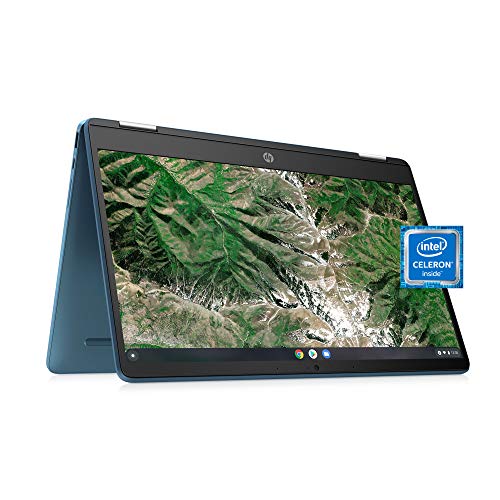
Best for: sketchers and note-takers who want a 360-degree hinge and tablet mode Skip it if: you need a sharp 1080p or higher panel for photo work
The HP X360 14a is the only convertible with a full 14" screen in this set, and that hinge is the whole reason to buy it. HP's listing lists a 14.0-inch diagonal touch panel with a 360-degree hinge, so the chassis flips into stand, tent and tablet modes. For a creator who leans on stylus input or wants to prop the display for reference, that is a different tool from a clamshell.
The compromises are honest. The panel is 1366×768, which is the lower resolution end of the set, and HP claims 12 hours of battery life. Inside sits an Intel Celeron N4020 dual-core with 4GB of RAM and 64GB of eMMC storage. That is fine for browser-based creative work, sketching apps and cloud editors, and it strains under heavy multi-tab loads. Ports cover 2× USB-C, 1× USB-A, DisplayPort out, a memory card reader and Bluetooth 5.0. Its trade-off against the Lenovo 14" is display quality and memory; against the Acer 15.6" it is screen area for the same 4GB ceiling.
Pros:
- 360-degree hinge, only convertible 14" here
- Memory card reader for camera workflows
- USB-C with DisplayPort output
- HP claims 12-hour battery life
- Roughly mid-range for this set on price
Cons:
- 1366×768 resolution, lowest of the 14" picks
- 4GB RAM ceiling for browser multitasking
- 64GB eMMC storage fills fast
- Heaviest 14" option at 3.64 lb
4. acer 2023 Chromebook 15.6" — Best for families
The largest touch panel in the set, a 15.6" FHD 1080p IPS display for shared-desk creative work.

Best for: households sharing a big-screen Chromebook for casual creative apps Skip it if: portability matters more than screen size
If a Chromebook has to live on the kitchen table and get used by more than one person, screen size and resolution start to matter more than raw compute. The Acer 2023 15.6" is the only 15.6" panel here, running at Full HD 1920×1080 on an IPS multi-touch display. Acer's listing calls out anti-glare, energy-efficient LED backlighting.
Inside, the specification sheet is entry-level: an Intel Celeron N4020 dual-core, 4GB of LPDDR4 RAM and 64GB of eMMC. That combination is enough for a family workload of school assignments, video calls, casual photo edits in Chrome and light Android creative apps. Acer's listing claims 12+ hours of battery and includes two USB-C ports for charging and display output. The chassis is the largest here at 0.8 × 14.4 × 9.9 in and 3.59 lb, so it is a desk laptop rather than a rucksack laptop. Its trade-off against the two 8GB picks is memory; against the HP X360 it gives up the convertible hinge in exchange for a much sharper, larger screen.
Pros:
- 15.6" FHD 1080p IPS touch panel, the largest here
- Two USB-C ports for charging and video out
- Acer claims 12+ hours battery
- Second-cheapest pick in this set
- Two sellers list it, more purchase choice
Cons:
- 4GB RAM limits heavy browser sessions
- 64GB eMMC storage fills fast
- No convertible hinge
- Heaviest and largest chassis in the set
5. Lenovo 11.6" 300e Chromebook — Best budget pick
A pocket-portable 11.6" 2-in-1 that is the cheapest way into a convertible touch Chromebook.

Best for: students trying convertible creation on a tight budget Skip it if: you plan to run demanding Android or Linux creative apps
The Lenovo 300e is the cheapest of the six and the one buyers choose most often here, judging by its category position. It is also the only sub-14" option, an 11.6" HD (1366×768) IPS 10-point multi-touch panel on a 2-in-1 chassis. That format is what a younger creator or a commuter reaches for: 3 lb, 0.8 × 11.5 × 8.03 in, small enough to fit in a school bag and still open on a train tray table.
The chip is a MediaTek 8173C quad-core rather than an Intel part, paired with 4GB of RAM and 32GB of eMMC storage. That is the lowest storage figure in the set, and the panel resolution is entry-tier. This is a renewed listing carrying a 90-day limited warranty, which is a shorter cover than the four 1-year warranties on the rest of the picks. Its trade-off against the HP X360 is screen size, resolution and warranty; against everything else in the set it is simply a much smaller, cheaper machine that still folds.
Pros:
- Cheapest of the five picks
- 2-in-1 chassis with 10-point multi-touch
- 11.6" size and 3 lb weight for real portability
- The one buyers choose most often here
- Wi-Fi 802.11 AC and Bluetooth 4.2
Cons:
- 32GB eMMC storage, smallest in the set
- 4GB RAM ceiling for creative workloads
- 90-day limited warranty on a renewed unit
- 1366×768 HD resolution
Does 'content creators' really fit a Chromebook?
Be honest with the search phrase. Chrome OS is a good home for browser-native creative work: writing, page layout in tools like Canva, illustration in web apps, video review, podcast prep, social scheduling and light photo edits. It is not the natural home for Premiere Pro timelines, DaVinci Resolve colour grades or Lightroom Classic libraries. None of the listings here document a discrete GPU, and RAM tops out at 8GB across the whole set.
So the honest reading of "content creator" for this category is a person doing browser-first or Android-app creation, occasionally reaching into Linux tooling on Chrome OS. If that is you, the field maps well. If your workflow already lives in native macOS or Windows creative apps, no touch Chromebook in this set will replace it, and the right move is a different category of laptop entirely.
RAM, storage and what each price tier buys
The five picks land in three price bands, and the money buys different things at each step. Rather than name figures, here is what the tiers actually deliver in this set:
- Entry tier. Both the Lenovo 300e and the Acer 15.6" sit here. Entry buys you 4GB of RAM, 32 to 64GB of eMMC storage, and either portability (300e) or a bigger 1080p panel (Acer 15.6"). Processors are dual-core or MediaTek quad-core, and warranties are 90 days or 1 year.
- Mid tier. The HP X360 14a occupies this tier alone. The money over entry buys the 360-degree hinge and a 14" touch panel with DisplayPort out and a card reader, while keeping 4GB of RAM and 64GB of eMMC.
- Premium tier. Both Lenovo 14" WUXGA and Acer Chromebook Plus 514 sit here. Premium buys 8GB of RAM, a WUXGA (1920×1200) panel, Wi-Fi 6E and modern USB-C. The Acer Plus 514 adds a 512GB SSD; the Lenovo adds a 400-nit panel claim and 10Gbps USB-C.
Read that top-to-bottom and the pattern is clean: move up a tier to unlock memory, then to unlock storage or brightness. The convertible hinge is orthogonal to price and only appears on the HP and the Lenovo 300e.
Which pick suits which creative workflow?
Match the workflow, then the pick:
- Browser-first photo and layout work. The Acer Chromebook Plus 514, for its 8GB RAM and 512GB SSD.
- All-day cloud editing in bright rooms. The Lenovo 14" WUXGA, for its 400-nit anti-glare claim and 8GB RAM.
- Sketching, note-taking and reference reading. The HP X360 14a, for its 360-degree hinge and card reader.
- A shared family creative Chromebook. The Acer 2023 15.6", for its 1080p IPS panel and two USB-C ports.
- A student's first convertible. The Lenovo 300e, for its 2-in-1 chassis at the cheapest price position here.
That short list is the fastest way to move from category to pick without rereading every product section. If two workflows fit, buy up on RAM before you buy up on anything else. It is the specification that ages best.
The verdict
The Acer Chromebook Plus 514 is the best touchscreen Chromebook for content creators in this set because it is the only pick pairing 8GB of RAM with a 512GB SSD on a 14" WUXGA touch panel, and that combination is what browser-based creative work actually asks for. It has the memory to hold a working canvas plus reference tabs and messaging, and the storage to keep cached project files and Linux tooling without eviction. The 8-core Intel Core i3-N355, Wi-Fi 6E and 2× USB-C round out a machine that will not be the bottleneck.
If you want a convertible, the HP X360 14a is the two-track winner: the 360-degree hinge changes what the laptop is for, at the cost of resolution and memory. The cutoff between them is simple. If your creative work involves stylus input, sketching, or reading long PDFs in tablet mode more than once a week, buy the HP. If it does not, buy the Acer Plus 514 and put the memory and SSD to work. The remaining three picks serve family, budget and big-screen use in that order.
FAQ
Is a touchscreen Chromebook powerful enough for content creators?
A touchscreen Chromebook is powerful enough for browser-first creative work: writing, layout in web apps, illustration, social scheduling, video review and light photo edits. Pick an 8GB model like the Acer Chromebook Plus 514 or Lenovo 14" WUXGA and it will hold a full working canvas without stuttering. For native Premiere, Resolve or Lightroom Classic, a Chromebook is not the right tool.
How much RAM does the best touchscreen Chromebook for content creators need?
The best touchscreen Chromebook for content creators needs 8GB of RAM, not 4GB. That single specification splits this field: 4GB handles a school workload but stalls once a canvas, a reference tab, a chat app and a music tab share memory. The Acer Plus 514 and Lenovo 14" WUXGA are the two 8GB picks here; the rest are 4GB.
Acer Chromebook Plus 514 vs Lenovo 14" WUXGA: which wins?
The Acer Chromebook Plus 514 vs Lenovo 14" WUXGA question comes down to storage against brightness. Both offer 8GB of RAM and a WUXGA touch panel. The Acer adds a 512GB SSD, useful if you keep project files locally. The Lenovo claims a 400-nit anti-glare panel, useful in bright rooms, but pairs it with just 64GB of flash. Storage-first: Acer.
Is 64GB of eMMC storage enough on a Chromebook?
64GB of eMMC storage on a Chromebook is enough for Chrome OS, a handful of Android apps and cloud-first creative work where files live in Google Drive or a similar service. It fills fast the moment you keep raw photos, downloaded video clips, or Linux tooling on the device. If that describes your workflow, look at the 512GB SSD on the Acer Plus 514 instead.
What is the biggest mistake shopping for a touchscreen creative Chromebook?
The biggest mistake shopping for a touchscreen creative Chromebook is chasing processor speed and ignoring memory. Two Celeron machines will feel identical inside a Google Doc, then diverge sharply once you open a canvas and ten tabs. Read the RAM figure first, the storage figure second, and the panel resolution third. Processor generation matters far less than shoppers assume.
Pick the workflow that matches your week, not the specification sheet that looks most impressive. A creator who spends four days in the browser and one afternoon sketching should buy the Acer Chromebook Plus 514 and accept the clamshell hinge, because the extra RAM and SSD pay back every working hour. A creator who sketches most days should buy the HP X360 14a and accept the softer panel. The Acer Plus 514 wins the default slot here because 8GB of RAM plus a 512GB SSD on a 14" WUXGA touch panel is the combination that ages best inside the constraints of Chrome OS, and it will still feel fast a year from now.