Best Wireless Docking Station for Students: Anker Wins

Seven docks compared on ports, footprint and warranty, with a straight answer on which ones actually charge a phone without a cable and which just call themselves wireless.

By Samuel HarrisUpdated 18 min read
On this page
- Best wireless docking station for students at a glance
- Does a wireless docking station for students actually exist?
- How the seven picks were matched to student profiles
- What each price tier buys in a docking station
- 1. Anker Nano Laptop Docking Station — Best overall
- 2. Plugable USB C Triple Display Docking Station — Runner-up
- 3. Anker 675 USB-C Docking Station — Best upgrade
- 4. TobenONE 19-in-1 Laptop Docking Station Dual Monitor — Best budget pick
- 5. Acer 13-in-1 Laptop Docking Station — Best for pros
- 6. Plugable Universal Laptop Docking Station Dual HDMI — Best minimal setup
- 7. Baseus Spacemate RD1 Pro — Best premium
- Which port count actually matters in a dorm room?
- What the listings do not tell you
- The verdict
- FAQ
The best wireless docking station for students is the Anker Nano Laptop Docking Station, because its 13-in-1 body carries a detachable 6-in-1 hub in a 5.51 x 3.74 x 1.57 in shell you can throw in a backpack. If you need cable-free phone charging on the dock itself, the Baseus Spacemate RD1 Pro is the one to look at, since Baseus lists Qi2 among its 15 functions. Price tiers here split cleanly: entry gets you ports, the middle gets you portability, and premium buys a charging pad or a monitor riser you didn't have before.
Best wireless docking station for students at a glance
| Pick | Displays | Wireless charging? | Price |
|---|---|---|---|
Best overall Anker Nano Laptop Docking Station |
3 (2× HDMI, 1× DP) | No | Check Price |
| 3× HDMI (1× 4K 30Hz claim) | No | Check Price | |
Best upgrade Anker 675 USB-C Docking Station |
1× 4K HDMI claim | Yes, pad built in | Check Price |
Best budget pick TobenONE 19-in-1 Laptop Docking Station |
2× 4K HDMI claim | No | Check Price |
Best for pros Acer 13-in-1 Laptop Docking Station |
3 (2× HDMI, 1× DP 1.4) | No | Check Price |
Best minimal setup Plugable Universal Docking Station Dual HDMI |
2 (1920x1200 claim) | No | Check Price |
Best premium Baseus Spacemate RD1 Pro |
2× 4K 60Hz claim | Yes, Qi2 claim | Check Price |




Does a wireless docking station for students actually exist?
Mostly, no. Search for a wireless docking station for students and you get docks that connect to your laptop over a cable. Every one of these seven does. The single USB-C upstream cable is the whole design: one plug carries video, data and power.
So where does "wireless" come from? Two of the seven add a charging pad you drop a phone onto. The Anker 675 lists a wireless charging area on its top surface. The Baseus Spacemate RD1 Pro lists Qi2 in its 15-in-1 breakdown. That's the wireless part. It charges your phone, not your laptop.
Nothing in this set claims to send video or data to your laptop without a cable, and you should treat any listing that suggests otherwise with suspicion. True wireless display is a separate technology with its own compromises around latency and resolution.
Here's the practical read for a student:
- If "wireless" to you means one less cable on the desk for your phone, two picks here qualify.
- If it means no cable to the laptop at all, no pick here qualifies and you should not buy on that basis.
- If you just want a single-cable desk setup, that's what all seven do, and the label doesn't matter.
That distinction is worth ten minutes of your time before you spend anything. A dock that consolidates seven cables into one is genuinely useful in a small room. A dock you bought expecting cable-free laptop docking is a return.
How the seven picks were matched to student profiles
Students aren't one buyer. I sorted these seven around four profiles that show up constantly in this category, then checked which published specifications actually served each one.
- The mover. Changes rooms, works in the library, shares a desk. Needs weight and size figures on the listing. The TobenONE at 0.68 lb and the Plugable UD-3900PDZ at 0.73 lb both qualify. So does the Anker Nano, whose detachable 6-in-1 hub is built for exactly this.
- The fixed-desk student. One room, one setup, all year. Footprint stops mattering and ergonomics start. The Anker 675 at 3.54 x 21.3 x 8.66 in is a monitor stand first and a dock second.
- The multi-screen worker. Code, CAD, spreadsheets, reference documents. Needs three outputs. The Anker Nano, the Acer 13-in-1 and the Plugable triple-display dock all list three video ports.
- The Mac user. Constrained hardest. TobenONE states outright it isn't recommended for Mac. Plugable's triple-display listing names macOS 11+ with driver installation.
What got weight in the ranking: published dimensions and weight, number of video outputs, stated warranty length, and whether the listing names your operating system. What got less: total port count, because 19-in-1 sounds better than 13-in-1 and tells you almost nothing about whether the ports are the ones you need.
Two picks lost ground on gaps. The Baseus listing publishes no dimensions and no weight, which is a real problem for a student measuring dorm desk space. The Acer listing shows a count field reading 111, which is clearly not a quantity of docks, so I ignored it.
What each price tier buys in a docking station
The three entry-priced picks here are not the compromised ones. That's the surprise in this set.
Entry tier. TobenONE, the Plugable UD-3900 and the Acer 13-in-1 sit at the bottom on price. TobenONE is the cheapest of the seven and still lists 19 ports, dual 4K HDMI and a 2 Year Manufacturer warranty. Acer is third-cheapest and includes a 110W power adapter in the box. What you give up is polish and, with Acer, warranty length at 1 Year.
Middle tier. The Anker Nano is fourth on price. The money buys a design idea rather than more ports: a 13-in-1 desktop base with a 6-in-1 hub that snaps off. Nothing cheaper here does that.
Premium tier. Three picks share the top band. The Plugable triple-display dock buys you DisplayLink and named macOS support. The Anker 675 buys 3.65 lb of monitor stand and a charging pad. The Baseus Spacemate RD1 Pro buys a 160W claimed total output, a status screen, a 24-month warranty and Qi2.
The honest summary: extra money in this category buys form factor and platform support, not port quantity. The cheapest pick here has the most ports of any of the seven.
1. Anker Nano Laptop Docking Station — Best overall
A 13-in-1 desk dock with a 6-in-1 hub that snaps off and travels, which no other pick in this set offers.
Best for: a student who works at a desk and carries the same dock to the library Skip it if: you need the phone-charging pad built in
The detachable design is the whole argument. Anker describes a 13-in-1 desktop docking station with a 6-in-1 portable hub that separates for on-the-go use, which means one purchase covers the dorm desk and the lecture hall. Every other pick here is either a desk fixture or a travel hub, never both.
At 5.51 x 3.74 x 1.57 in it's the smallest of the three triple-display picks. Anker lists two HDMI ports plus one DisplayPort for up to three monitors, along with three USB-A, two USB-C data ports at 5Gbps and 10Gbps, Gigabit Ethernet and 100W Power Delivery to the laptop. The stated compatibility list names Dell XPS, Lenovo ThinkPad and HP Spectre, which covers most campus Windows machines.
The warranty runs 18 months, longer than Acer's 1 Year but shorter than the 2-year cover on both Plugable docks and the TobenONE. Model number is A83C3. Two sellers list it, and it sells faster here than five of the other six picks.
The trade-off against the premium tier is straightforward: no charging pad and no status screen. Against the TobenONE, it costs more for fewer total ports.
Pros:
- Detachable 6-in-1 hub, unique in this set
- Smallest triple-display body at 5.51 x 3.74 x 1.57 in
- 100W Power Delivery to the laptop
- Named Windows laptop compatibility
- Second-fastest seller of the seven
Cons:
- No wireless charging pad on the dock
- 18-month warranty trails four picks here
- No weight published on the listing
- Compatibility list names Windows machines only
2. Plugable USB C Triple Display Docking Station — Runner-up
The only triple-display pick whose listing names macOS, Windows and ChromeOS support together.

Best for: MacBook and Chromebook users who need three screens Skip it if: you want a 4K screen running above 30Hz
Cross-platform support is what earns this the runner-up slot. Plugable names USB-C, USB4 and Thunderbolt laptops across macOS 11+ with driver installation, Windows and ChromeOS. If you're on a MacBook, this and the Anker 675 are the picks that don't push you away.
The video setup is unusual and worth understanding before you buy. Plugable lists three HDMI outputs: one at 4K 30Hz via Alt Mode, two at 1080p 60Hz through DisplayLink. That's a real limitation for anything with motion, but for a coding window, a browser and a PDF it's fine. Six USB 5Gbps ports and 100W PD round it out.
It's 0.73 lb and 1.18 x 7.87 x 3.54 in, so it's genuinely portable despite being a desktop-class dock. The 2 Year Limited Parts and Labor warranty is among the longest here, and Plugable claims North American-based support with a compatibility guarantee. Model UD-3900PDZ.
Two sellers list it and it's the fastest seller of all seven picks. The cost of that cross-platform reach is real: it sits in the top price band while capping 4K at 30Hz, where the cheaper TobenONE claims dual 4K.
Pros:
- macOS, Windows and ChromeOS all named
- 2 Year Limited Parts and Labor warranty
- Light at 0.73 lb for a triple-display dock
- Six USB ports at 5Gbps
- Fastest-selling pick of the seven
Cons:
- 4K capped at 30Hz on one output only
- Two of three outputs limited to 1080p
- macOS needs driver installation
- Premium price for lower resolution than cheaper picks
3. Anker 675 USB-C Docking Station — Best upgrade
A monitor stand with a 12-in-1 dock and a wireless charging pad inside it, which reclaims the desk space underneath.

Best for: a permanent desk where the monitor sits too low Skip it if: you move rooms every semester
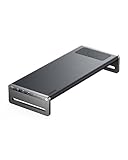
This is the pick that solves a dorm problem no other dock addresses: desk area. At 3.54 x 21.3 x 8.66 in the Anker 675 spans the width of a monitor and lifts it, and Anker describes storing your keyboard and mouse in the gap underneath when you're not using them. In a room where the desk is also the dining table, that matters.
The wireless charging pad is the second reason it's here. Anker lists a charging area on the surface alongside a 100W max USB-C upstream port, three USB-A ports, two USB-C PD ports sharing 45W, SD and microSD slots and a 4K HDMI output. That's one HDMI, so multi-monitor students should look elsewhere in this list.
At 3.65 lb it's by far the heaviest pick, five times the weight of the TobenONE. That's a feature for stability and a problem for anyone packing it. The warranty is 18 months, model A8377, and only one seller lists it. It's the most expensive of the seven.
Two things it gives up against the Anker Nano: a second and third display output, and any pretence of portability.
Pros:
- Wireless charging pad on the top surface
- Raises the monitor and frees the space beneath
- SD and microSD card slots
- 100W upstream plus 45W shared across two USB-C ports
Cons:
- Only one HDMI output, so single external display
- Heaviest pick at 3.65 lb
- Needs 21.3 in of desk width
- Most expensive of the seven with no second video port
4. TobenONE 19-in-1 Laptop Docking Station Dual Monitor — Best budget pick
Nineteen listed ports and dual 4K HDMI in a 0.68 lb body, from the cheapest pick in the set.

Best for: Windows or Chromebook students on the tightest budget Skip it if: you use a MacBook
The value case here is blunt. TobenONE is the cheapest of the seven and lists more ports than any of them: 19 in total, including 10 USB ports, two HDMI outputs, Gigabit Ethernet, SD and MicroSD slots and PD charging. Ten USB ports means your keyboard, mouse, external drive, printer and drawing tablet all stay connected.
It's also the lightest at 0.68 lb, in a 1.6 x 4.9 x 3.5 in shell. The 2 Year Manufacturer warranty beats the Anker Nano's 18 months and matches both Plugable docks. Model AEMUDS057A, one seller listing it.
The Mac warning is the catch, and it's TobenONE's own words: designed for Windows and Chrome OS laptops, not recommended for Mac users. If you're on a MacBook, that ends the conversation. There's a second catch buried in the power claim, since TobenONE says 100W passthrough charging requires a 65W or higher adapter and the adapter isn't included. Budget for that.
Against the Acer pick, which does include a 110W adapter, the price gap narrows once you buy a charger. It's also the slowest seller among the four cheapest picks here.
Pros:
- Cheapest of the seven picks
- Highest listed port count at 19
- Lightest body at 0.68 lb
- 2 Year Manufacturer warranty
Cons:
- Not recommended for Mac by the manufacturer
- Power adapter not included
- Two video outputs, not three
- Sells slower than the other entry-priced picks
5. Acer 13-in-1 Laptop Docking Station — Best for pros
Three independent Windows displays via MST with a 110W power adapter in the box, at the third-cheapest price here.

Best for: engineering or design students running three Windows displays Skip it if: you want more than a year of warranty cover
The included adapter is what makes this the practical triple-display buy. Acer lists a 110W power adapter in the box delivering 100W to the laptop through the USB-C PD host port. TobenONE makes you supply your own. That difference closes a real gap in the total cost of getting running.
Video is two HDMI plus one DisplayPort 1.4, and Acer describes three independent screens for Windows laptops via MST technology. Note the word Windows. MST behaves differently on macOS, and Acer doesn't claim Mac support anywhere in the listing. Alongside the video ports Acer lists one USB-C and three USB-A for data, plus a second USB-C for power.
The body is the flattest here at 0.94 x 7.89 x 3.25 in, which suits sliding under a monitor foot. Colour is Space Gray. One seller lists it, and it sells at a middling pace among these seven.
The warranty is the weak spot: 1 Year Warranty, the shortest in the set by a full year against four rivals. The listing also publishes no weight, which is annoying if you're deciding whether to carry it. And a count field reading 111 tells you nothing useful.
Pros:
- 110W power adapter included in the box
- Three independent displays via MST claim
- DisplayPort 1.4 as well as two HDMI
- Flattest profile at 0.94 in thick
Cons:
- 1 Year Warranty, shortest of the seven
- No Mac support claimed anywhere
- No weight published on the listing
- Only one seller stocks it
6. Plugable Universal Laptop Docking Station Dual HDMI — Best minimal setup
A hybrid USB 3.0 and USB-C cable, so it works with older laptops the USB-C-only docks here can't touch.

Best for: essay writing and research on two 1080p screens Skip it if: you stream video or game on the external displays
If your laptop predates USB-C video output, this is the only pick in the set that helps. Plugable lists a hybrid 2-in-1 USB 3.0 and USB-C cable, which means a hand-me-down machine or an older campus loaner still drives two monitors. Every other dock here needs a full-featured USB-C port.
The resolution ceiling is low and Plugable states it plainly: dual HDMI up to 1920x1200 at 60Hz, a single display up to 2560x1440 at 50Hz, 4K not supported. It's the second-cheapest pick, weighs 0.81 lb, measures 4.02 x 6.45 x 3.22 in, and carries a 2 year limited parts and labor warranty with Seattle-based email support. Model UD-3900, listed as released in 2021.
Read the restriction before buying. Plugable says the dock doesn't support gaming, DisplayPort connections, or HDCP protected content and streaming services, naming Netflix specifically. For writing papers and reading sources across two screens, none of that matters. For watching anything, it does.
Against the Anker Nano it trades resolution and a third screen for older-laptop compatibility. Fair swap, but only if you need it.
Pros:
- Works with USB 3.0 laptops, unique here
- Second-cheapest of the seven
- 2 year parts and labor warranty
- Six USB ports plus Gigabit Ethernet
Cons:
- No 4K support at all
- Streaming services blocked by HDCP limitation
- Driver installation required
- Heavier than the two lightest picks at 0.81 lb
7. Baseus Spacemate RD1 Pro — Best premium
Qi2 wireless charging plus a status screen and a 180W GaN adapter in the box, the fullest package here on paper.

Best for: a student who wants Qi2 phone charging on the dock itself Skip it if: you want published dimensions before you buy
Qi2 is the headline. Baseus lists a 160W total output claim spread across two 100W USB-C PD ports, a 100W USB-C host and Qi2 wireless charging, which is a more current charging standard than the pad on the Anker 675. Phone on the dock, no cable.
The status screen is the second differentiator. Baseus describes a real-time smart screen showing port status, charging power and safety alerts, plus host detection. Nothing else in this set displays anything. On video, the claim is 4K at 120Hz on a single display through HDMI 2, or dual 4K at 60Hz, which is the highest refresh rate figure any listing here quotes.
The box contents are generous: a 180W GaN power adapter, detachable US and EU plugs, a 0.8m full-featured USB-C cable and a manual. Warranty is 24 months with a 45-day money back guarantee, the longest cover in the set.
Now the problems. The listing publishes no dimensions, no weight and no colour, so you're buying blind on desk footprint. It's tied for most expensive, only one seller lists it, and it's the slowest seller of the seven by a wide margin.
Pros:
- Qi2 wireless charging, newest standard here
- 24-month warranty, longest in the set
- 180W GaN adapter and USB-C cable included
- Status display showing port and charging state
Cons:
- No dimensions or weight published anywhere
- Slowest seller of the seven
- 4K at 120Hz limited to one specific HDMI port
- Tied most expensive with no size information
Which port count actually matters in a dorm room?
Port totals in this category are marketing arithmetic. A 19-in-1 counts every jack including two card slots and an audio port. A 13-in-1 might give you the three you actually use more comfortably. Here's how to count properly.
Work out what plugs in permanently:
- Display outputs. One if you have a single monitor, two or three if you don't. This is the number that changes the shortlist most.
- USB-A for legacy gear. Mice, older keyboards, flash drives handed out in labs. Three is plenty for most students.
- Ethernet. Campus wifi during exam week is a lottery. Every pick here lists Gigabit Ethernet.
- Card slots. Only matter if you shoot photo or video. Two picks list them: the Anker 675 and the TobenONE.
- Audio. A 3.5mm jack saves a Bluetooth pairing dance before every call.
The count you should ignore is the headline number. Ten USB ports on the TobenONE is impressive and mostly irrelevant, because a dorm desk rarely hosts ten USB devices. What replaced it as my deciding criterion was display outputs plus platform support, since those two are the specifications that make a dock either work or not work with your machine.
One more thing shoppers miss: the upstream port. All seven list 100W Power Delivery to the laptop, which is enough for a typical student ultrabook. A gaming laptop drawing more than that will charge slowly or not at all while docked.
What the listings do not tell you
Four gaps in this data are worth knowing about before you commit.
Noise and heat. Nothing published. Docks pushing three displays through DisplayLink or MST run warm, and none of these seven listings quotes a temperature or mentions a fan. Acer describes a cool-running design without giving a figure.
Cable length. Only Baseus states one, at 0.8m. If your laptop sits to the left of your monitor and the dock behind it, a short captive cable becomes a daily annoyance. The other six say nothing.
What happens on macOS. Two picks name macOS. TobenONE explicitly says it isn't recommended. Four say nothing at all, which is not the same as saying yes. If you're a Mac student, treat silence as a no.
Refresh rate at your actual resolution. Several picks quote a maximum resolution and a maximum refresh rate that don't apply simultaneously. Baseus is upfront that 4K at 120Hz works on HDMI 2 only. Plugable's triple-display dock is upfront that its 4K output runs at 30Hz. Read those clauses closely, because a 30Hz desktop feels wrong to use for anything but static work.
I'd add one practical note. Warranty length varies from 1 Year on the Acer to 24 months on the Baseus. For a device that lives four years of degree with you and gets unplugged daily, that spread is more meaningful than a port or two either way.
The verdict
If you're a Windows student who moves between a desk and the library, the Anker Nano Laptop Docking Station is the buy. The detachable 6-in-1 hub means you carry a fifth of the dock instead of all of it, and at 5.51 x 3.74 x 1.57 in the desk base disappears behind a monitor. Three display outputs and 100W Power Delivery cover a full workstation.
If you're on a MacBook or a Chromebook, the cutoff is your operating system, and the Plugable USB C Triple Display Docking Station wins on that alone. It's the only triple-display pick here whose listing names macOS 11+, Windows and ChromeOS together, and it backs that with a 2 Year Limited Parts and Labor warranty against Anker's 18 months. The price of admission is a 4K output capped at 30Hz.
Two smaller flips. If the desk itself is the problem, the Anker 675 lifts your monitor across 21.3 in and adds a charging pad, though you drop to one HDMI. If money is genuinely tight and you run Windows, the TobenONE is the cheapest here with 19 listed ports and a 2 Year Manufacturer warranty, and you buy a charger separately.
None of these seven docks connects to your laptop wirelessly. Two charge a phone without a cable. Buy on ports and platform, not on the word.
FAQ
Is a wireless docking station for students worth the money?
A wireless docking station for students is worth it if you plug and unplug more than three cables a day, which describes most people with an external monitor. One USB-C connection replacing five saves real time across a semester. If you use your laptop alone on its own screen, skip the category entirely and buy a stand instead.
Which docking station works with a MacBook?
Working with a MacBook narrows this list fast. The Plugable USB C Triple Display Docking Station names macOS 11+ with driver installation, Windows and ChromeOS in its compatibility claim. The Anker 675 doesn't restrict by platform in its listing. TobenONE states outright it isn't recommended for Mac users. Treat any listing that stays silent on macOS as unproven.
Anker Nano or Plugable triple display: which should I pick?
Between the Anker Nano and the Plugable triple display, the operating system decides it. Choose the Anker Nano on Windows, since it gives you two HDMI plus DisplayPort in a 5.51 x 3.74 x 1.57 in body with a hub that detaches for travel. Choose the Plugable on macOS or ChromeOS, accepting 4K at 30Hz on one output.
Do these docks charge my laptop as well?
These docks charge your laptop through the same cable that carries video and data. All seven list 100W Power Delivery to the host. The Acer includes a 110W adapter in the box and Baseus includes a 180W GaN adapter, while TobenONE requires a 65W or higher adapter you buy yourself. Check what ships before you order.
What is the most common docking station mistake?
The most common docking station mistake is buying on total port count. Nineteen ports sounds better than thirteen and tells you nothing about display outputs or whether your laptop is supported. The second mistake is missing the resolution clauses: the Plugable UD-3900 doesn't support 4K at all, and Baseus limits 4K at 120Hz to one specific HDMI port.
Start by answering one question: what's on your laptop's USB-C port, and does the listing name your operating system? That single check eliminates most of this shortlist for most people, and it takes thirty seconds. Then count display outputs against monitors you actually own. The Anker Nano earns the default recommendation because it's the rare dock that doesn't force a choice between the desk setup and the backpack, and for a student who works in three different rooms a week, that's worth more than a port count or a charging pad. Buy the shape that fits how you move.