Best USB C KVM Switch for Students by Deciding Spec

Five USB-C KVM switches compared for student setups, with the deciding specs, the trade-offs, and the pick that fits a laptop-plus-desktop desk.

By Samuel HarrisUpdated 14 min read
On this page
- Best USB C KVM switch for students at a glance
- Does the 'for students' label actually mean anything here?
- How I shortlisted the picks
- What actually decides a student KVM switch
- 1. Cable Matters 20Gbps USB C KVM Switch for 2 Computers — Best overall
- 2. Ouluoa USB C KVM Switch 2 Monitors 1 Desktop and 1 Laptop — Best premium
- 3. MINIX K1 USB C KVM Switch 1 Monitors 2 Computers — Best for families
- 4. MLEEDA USB C KVM Switch 4K@60Hz — Best budget pick
- 5. ATLAHET KVM Switch 1 Monitors 2 Computers 4K@60Hz USB C — Most versatile
- One monitor or two: which layout fits a dorm desk?
- PD wattage: what the number really buys you
- What to check on your laptop before you buy
- The verdict
- FAQ
The best USB C KVM switch for students is the Cable Matters 20Gbps USB C KVM Switch, because it moves data at 20Gbps, pushes 140W of power delivery to a laptop, and hands off a full USB-C or Thunderbolt 4 dock between two computers. If you need two HDMI monitors driven from the switch itself, the Ouluoa dual-monitor unit is the better buy, with 4K at 60Hz output and 100W PD on tap.
Best USB C KVM switch for students at a glance
| Pick | Video ceiling | PD charging | Price |
|---|---|---|---|
Best overall Cable Matters 20Gbps USB C KVM Switch |
8K at 30Hz claim 20Gbps data |
140W | Check Price |
Best premium Ouluoa Dual Monitor USB C KVM |
4K at 60Hz 2x HDMI out |
100W | Check Price |
Best for families MINIX K1 USB C KVM Switch |
4K at 120Hz HDR claim | 100W | Check Price |
Best budget pick MLEEDA USB C KVM Switch |
4K at 60Hz HDMI out |
not listed | Check Price |
Most versatile ATLAHET KVM Switch 2 Port |
4K at 60Hz HDMI out |
100W | Check Price |



Does the 'for students' label actually mean anything here?
Honestly, not on Amazon's side. None of these listings is marketed at students specifically, and none carries an education discount or a student-only feature. That is worth saying out loud, because a phrase like "USB-C KVM switch for students" hides a real question: what does a student desk actually need that a generic desk does not?
Three things, in my read of the data:
- A laptop that gets charged while it's docked. Students carry a laptop to class, then drop it on the desk. A KVM with PD 3.0 charging replaces a second charger.
- A single monitor most of the time. Dorm desks and small bedrooms rarely fit two displays. Four of the five picks here target a one-monitor layout.
- A price that does not eat the textbook budget. Two of these five sit in the entry band, one in the middle, and two at the premium end.
So "for students" is really shorthand for "small desk, one monitor, laptop needs power". Read the picks with that lens.
How I shortlisted the picks
I started with the KVM Switches category on Amazon and filtered out anything without a USB-C input, which is the whole point of the search. Three cuts followed:
- No USB-C host input, out. DisplayPort-in and HDMI-in switches are a different category. A student with a modern laptop wants a single cable to the dock.
- No PD charging path or unclear power story, out. A KVM that cannot keep a laptop charged forces a second cable, which defeats the point.
- No published resolution ceiling, out. If the listing does not commit to 4K at some refresh rate, it is not competing with the ones that do.
Five listings survived. Two share the same 4K at 60Hz ceiling with HDMI outputs (MLEEDA and ATLAHET). One steps up to 4K at 120Hz over USB-C (MINIX K1). One goes wider with dual HDMI monitors (Ouluoa). One goes deeper with 20Gbps bandwidth and 140W PD (Cable Matters). That spread is what makes the ranking interesting.
What actually decides a student KVM switch
Most roundups compare resolution. That is a mistake. Every pick here hits 4K, and any laptop a student is likely to own drives 4K without breaking a sweat. Resolution stopped being the deciding spec two generations ago.
The deciding spec is power delivery wattage, followed by whether the switch passes a full dock or only video.
Here is why. A student's KVM lives on a desk with a laptop that arrives half-charged from a lecture. If the switch delivers 100W of PD, it charges most 13-inch and 14-inch laptops at full rate. At 140W it charges 16-inch machines and small mobile workstations without throttling. At an unstated wattage, you cannot plan.
The second axis is dock passthrough. The Cable Matters unit is unusual because it hands a whole Thunderbolt 4 or USB-C dock between two computers, so your Ethernet, your SD card reader, your extra USB ports and your monitor all follow the switch. The others share a monitor and a few USB ports, which is fine, but it is a smaller commitment.
Between those two axes, most student decisions resolve.
1. Cable Matters 20Gbps USB C KVM Switch for 2 Computers — Best overall
A 20Gbps switch with 140W PD and dock passthrough that outclasses the rest of this set on bandwidth and power.
Best for: a student running a laptop plus a desktop or docking station on one high-refresh monitor Skip it if: you need two displays from the switch itself
The headline figure is 140W of PD, more than any other pick here. That covers a MacBook Pro 16-inch or a 15-inch Windows laptop at full charge rate, not a limp trickle. Cable Matters says the switch runs at 20Gbps of data throughput, which matters if you plug a fast SSD into the shared dock. The brand also claims 8K output at 30Hz, though at the desk that mostly translates into headroom for 4K at high refresh, which is the setting a student actually uses.
The clever bit is the docking-station conversion. Instead of buying a KVM plus a dock, you buy one dock and share it between two computers through this unit. For a student who already owns a Thunderbolt or USB-C hub, that is a meaningful saving in cable count. An RF remote is included, which keeps the switch tucked out of sight.
The trade-off: only one monitor output, and the listing warns you must use the included USB4 cables rather than substituting Thunderbolt 3, 4 or 5 cables. That is fussy, and a cable lost in a house move is a real problem.
Pros:
- 140W PD, the highest wattage in this set
- 20Gbps data throughput for fast dock accessories
- Shares a full USB-C or Thunderbolt 4 dock between two hosts
- RF remote included for out-of-sight placement
- 8K at 30Hz output claim leaves headroom for 4K
Cons:
- Single monitor output only
- Locked to the supplied USB4 cables, not any Thunderbolt cable
- Mid price band, above the two entry picks
2. Ouluoa USB C KVM Switch 2 Monitors 1 Desktop and 1 Laptop — Best premium
The only pick here that drives two HDMI monitors at 4K at 60Hz from a single switch.
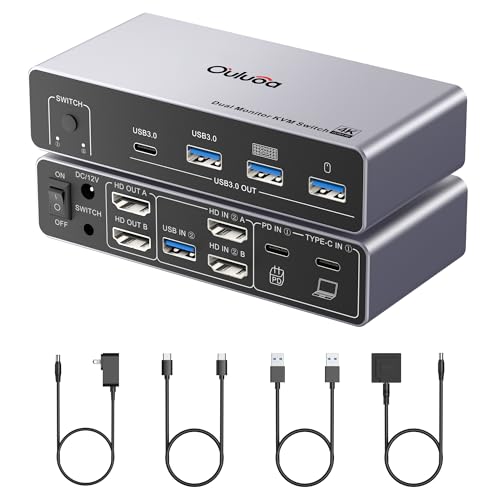
Best for: a dual-monitor desk that wants HDMI outputs and extra USB 3.0 ports built in Skip it if: you only ever use one display
If your student setup already has two monitors, this is the pick that changes the equation. Ouluoa runs both displays at 4K at 60Hz via USB-C, and it exposes three USB 3.0 ports plus a USB-C port for shared peripherals. That is a proper docking station wrapped around a KVM, in a body measuring 1.3 x 5.24 x 2.52 in.
The PD story is capped at 100W, which is enough for a 13-inch or 14-inch laptop but tight for larger machines under load. The unit ships with a 12V external power adapter rather than drawing from the host, which Ouluoa says keeps output stable when several USB devices are attached. A wired remote is included, and the box is silver.
The trade-off is the price position: this is the most expensive pick in the set, and only one seller lists it. Buyers of dual-monitor setups will still find it easier to justify than stacking a separate dock on top of a single-monitor KVM.
Pros:
- Two HDMI outputs at 4K at 60Hz
- Three USB 3.0 ports plus a USB-C port on board
- External 12V adapter, no host-USB power draw
- Wired remote in the box
- Compact 1.3 x 5.24 x 2.52 in footprint
Cons:
- The most expensive pick in this set
- Only one seller lists it
- 100W PD is short of the Cable Matters unit's 140W
3. MINIX K1 USB C KVM Switch 1 Monitors 2 Computers — Best for families
A 6.53 oz aluminium switch with a 4K at 120Hz HDR claim and a published one-year warranty.

Best for: a shared home office where a parent's laptop and a student's laptop take turns at one monitor Skip it if: you need more than 100W of charging for a gaming laptop
MINIX is a family pick because it does the ordinary things well and does not gouge on price. The K1 sits in the entry band, weighs 6.53 oz, and measures 0.71 x 5.2 x 2.6 in in a grey aluminium shell. That matters when the switch lives on a shared desk and gets moved every week. MINIX also publishes a one-year manufacturer warranty, which two of the five picks here do not.
On specs, MINIX claims 4K at 120Hz HDR output, the highest refresh-rate figure in the set, and 100W of PD 3.0 charging. Front-panel ports cover a USB-C and two USB-A sockets, which suits a shared keyboard, a shared mouse and the occasional flash drive. Compatibility is listed as Windows 10 and 11, macOS, Linux, Android and Harmony OS.
The trade-off: no dock passthrough of the Cable Matters kind, and no wired remote in the listing photos, so switching is by button. For a shared household that lives with the switch on the desk, that is fine.
Pros:
- 4K at 120Hz HDR output claim
- 100W PD 3.0 charging
- Aluminium shell at 6.53 oz
- One-year manufacturer warranty published
- Broad OS list, including Linux and Android
Cons:
- No wired or RF remote listed
- 100W ceiling is tight for a large gaming laptop
- Single monitor only
4. MLEEDA USB C KVM Switch 4K@60Hz — Best budget pick
The cheapest of the five, with a 4K at 60Hz HDMI output and a wired remote in the box.

Best for: a first-year student on a tight budget who just needs one HDMI monitor shared between two laptops Skip it if: you want a metal chassis or a published warranty
MLEEDA is the cheapest pick here. It weighs 3.53 oz, measures 0.47 x 2.8 x 2.3 in, and covers the core job: two USB-C laptops sharing one HDMI monitor plus a USB port. Video runs at 4K at 60Hz with backward compatibility down through 1440p at 120Hz and lower. A 1.5m wired remote is included, and LED indicators show which laptop is active.
The listing is direct about limits. It is compatible with Windows and Mac OS laptops only, no Linux, and you must connect the supplied USB power cord. That is a KVM in its simplest form, and the price reflects that.
The trade-off is what is not listed. There is no stated PD wattage, no stated warranty, and no metal chassis to talk about. For a student who already has a laptop charger on the desk and just needs to share a monitor between a personal laptop and a school laptop, none of those omissions matter. For anyone who wants the KVM to be the charger too, look up the set.
Pros:
- The cheapest pick in this set
- 4K at 60Hz HDMI output
- 1.5m wired remote in the box
- Compact 0.47 x 2.8 x 2.3 in footprint
- LED indicators for the active host
Cons:
- No stated PD wattage
- No published warranty
- Windows and Mac OS only, no Linux support
5. ATLAHET KVM Switch 1 Monitors 2 Computers 4K@60Hz USB C — Most versatile
A Thunderbolt-required switch with 100W PD, HDMI output at 4K at 60Hz, and a wired remote.

Best for: a laptop-plus-desktop desk that wants HDMI in, 100W charging, and a wired remote at hand Skip it if: your laptop lacks a Thunderbolt 3/4/5 port
ATLAHET aims at the same job as MLEEDA and MINIX but adds two things: an explicit 100W PD path from a 12V DC supply, and a wired remote that ATLAHET calls an "extend control switch". The chassis measures 5.51 x 2.48 x 0.91 in and is finished in black, and the listing publishes a one-year manufacturer warranty.
The important caveat is on the listing itself: your laptop must have a Thunderbolt 3, 4 or 5 port. That is not the same as any USB-C port, and a cheaper laptop with plain USB-C 3.2 may not work. Check the port symbol on the laptop before you order. Given that gate, ATLAHET pairs well with a Thunderbolt-equipped student laptop plus a desktop with HDMI output.
The trade-off against the Cable Matters winner is bandwidth: ATLAHET does not commit to a 20Gbps figure and does not pass a full dock, so if your accessories live on a Thunderbolt hub, this is the smaller solution.
Pros:
- 100W charging via 12V DC supply
- 4K at 60Hz HDMI output
- Wired remote included
- One-year manufacturer warranty published
- Two button and remote switching methods
Cons:
- Requires a Thunderbolt 3, 4 or 5 port on the laptop
- No published data-throughput figure
- Only one seller lists it
One monitor or two: which layout fits a dorm desk?
Most student desks are one-monitor desks, and that is not going to change. A dorm room fits a 24-inch or 27-inch panel and not much more. Four of the five picks here (Cable Matters, MINIX K1, MLEEDA, ATLAHET) target that layout, with a single HDMI or USB-C output.
Two-monitor students are a smaller group but a real one, often architecture, film or CS majors. The Ouluoa is the only pick that carries two HDMI outputs from the switch itself. The alternative is to buy a single-monitor KVM plus a separate dock or splitter, which almost always costs more and adds a second box to the desk.
The rule of thumb: if you already own two monitors and know you'll keep using both, buy the Ouluoa. If you own one monitor and are considering a second some day, buy a single-monitor KVM now and add a dock later. Do not pay for a second output you will not plug in.
PD wattage: what the number really buys you
PD wattage on these switches is the charging figure sent up the same USB-C cable that carries video. Higher is better only up to what your laptop can accept. Here is a working map:
- Under 65W. Enough for a Chromebook or a small 13-inch laptop under a light load. None of these picks sits here.
- 65W to 100W. MINIX K1, Ouluoa and ATLAHET all publish figures in this band. Fine for 13-inch and 14-inch laptops, and enough for a 15-inch machine that is not gaming.
- 140W. Cable Matters is the only pick at this figure. This is the band that keeps a 16-inch MacBook Pro or a workstation-class Windows laptop at full charge under load.
- Not listed. MLEEDA does not publish a wattage. Treat that as "bring your own charger".
If your laptop's included charger is 96W or lower, the 100W picks are enough. If it is 140W or higher, only Cable Matters keeps up without throttling.
What to check on your laptop before you buy
USB-C ports are not all the same, and every listing here has a compatibility line worth reading. Before you order, check five things:
- Does the laptop's USB-C port carry DisplayPort Alt Mode? If it does not, no USB-C KVM will drive a monitor from it.
- Is the port Thunderbolt 3, 4 or 5? ATLAHET requires this. Cable Matters recommends it and warns against substituting Thunderbolt cables for its supplied USB4 cables.
- What wattage is your laptop's charger? Match or beat that figure with the KVM's PD rating.
- What OS do you run? MLEEDA is Windows and Mac only. MINIX K1 adds Linux, Android and Harmony OS.
- What is your monitor's input? HDMI on MLEEDA, Ouluoa and ATLAHET; USB-C on Cable Matters and MINIX K1. If your monitor is HDMI-only, buy accordingly.
Five minutes with the laptop's spec sheet saves a return.
The verdict
The best USB C KVM switch for students is the Cable Matters 20Gbps USB C KVM Switch. It wins on the two specs that actually decide a student desk: 140W of PD charging, the highest in this set, and 20Gbps of data throughput with full dock passthrough between two computers. Nothing else here does both.
Two conditions flip that call. If your desk carries two monitors and you want the switch to drive both without a separate dock, buy the Ouluoa Dual Monitor USB C KVM, which is the only pick with two HDMI outputs at 4K at 60Hz. If your budget is tight and you only need to share one HDMI monitor between two laptops, buy the MLEEDA USB C KVM Switch, which is the cheapest of the five and does the core job at 4K at 60Hz. The MINIX K1 is the compromise pick for a shared home office, with a 4K at 120Hz HDR claim and a one-year warranty. The ATLAHET rewards a Thunderbolt-equipped laptop that wants 100W charging and a wired remote, but check the port symbol first.
FAQ
Is a USB C KVM switch worth it for a student with one laptop?
A USB C KVM switch is worth it once you add a second computer, not before. If you own only one laptop, a plain USB-C dock does everything a KVM does and costs less. The moment you add a desktop, a school laptop or a family PC to the desk, the switch pays back by sharing one monitor, one keyboard and one mouse between them.
What is the deciding specification between these picks?
The deciding specification here is PD charging wattage, paired with whether the switch passes a full dock or just video. Cable Matters leads at 140W with dock passthrough. Ouluoa, MINIX K1 and ATLAHET publish 100W. MLEEDA does not state a wattage. Every pick reaches 4K, so resolution is not what separates them at this level.
Can I use one of these with a MacBook Air or Pro?
Yes, every pick here lists macOS compatibility. Cable Matters is the strongest match for a 16-inch MacBook Pro because its 140W PD keeps pace with Apple's larger charger. For a 13-inch or 14-inch MacBook Air or Pro, the MINIX K1 or Ouluoa at 100W is enough. Confirm your Mac's port supports DisplayPort Alt Mode, which all recent models do.
Cable Matters or Ouluoa: which is the better student pick?
Cable Matters is the better student pick for a one-monitor desk, thanks to 140W charging and 20Gbps dock passthrough. Ouluoa is the better student pick for a two-monitor desk, because it drives two HDMI outputs at 4K at 60Hz from the switch itself. If you own only one monitor today, Cable Matters wins; if you own two, Ouluoa saves you buying a separate dock.
What mistake do first-time KVM buyers make?
The most common mistake first-time KVM buyers make is assuming any USB-C port on the laptop will work. Many cheaper laptops carry USB-C ports that do not carry DisplayPort Alt Mode, and those will not drive a monitor through a USB-C KVM. Check the port symbols on the laptop, and match the switch's PD wattage to your laptop's included charger before ordering.
Start with the Cable Matters if you want the switch to outlive your current laptop and cover whatever you plug in next, because 140W and 20Gbps leave meaningful room to grow. That is the honest reason it sits at number one: not because it is the flashiest pick, but because the specs that decide a student desk are already handled. Everything else on this list is a sensible answer to a narrower question, whether that is a second monitor, a tighter budget, or a Thunderbolt-only laptop. Buy against the constraint that actually applies to your desk, not the one the marketing points at.